API Keys
Introduction
API keys are essential for authenticating and securing access to AlooChat’s services. They serve as unique identifiers that allow your applications, integrations, and automated systems to interact with AlooChat’s APIs securely.
What are API Keys?
API keys are secret tokens that:
- Authenticate your requests to AlooChat’s services
- Control access to specific features and data
- Track usage and monitor API consumption
- Secure your integrations from unauthorized access
Key Benefits
- Secure Authentication: Each API key is unique and encrypted
- Granular Permissions: Control what each key can access
- Usage Monitoring: Track API calls and performance metrics
- Easy Management: Create, rotate, and revoke keys as needed
Get Started
Follow these steps to create your first API key and start integrating with AlooChat.
Step 1: Navigate to Security Settings
Go to the AlooChat Studio and navigate to the security section:
URL: https://studio.aloochat.ai/security?tab=access-control
Step 2: Create New API Key
Once you’re in the security settings, you’ll see the API key management interface:

Click the “Create New API Key” button to start the creation process.
Step 3: Provide API Key Name
A dialog will appear asking you to name your API key:
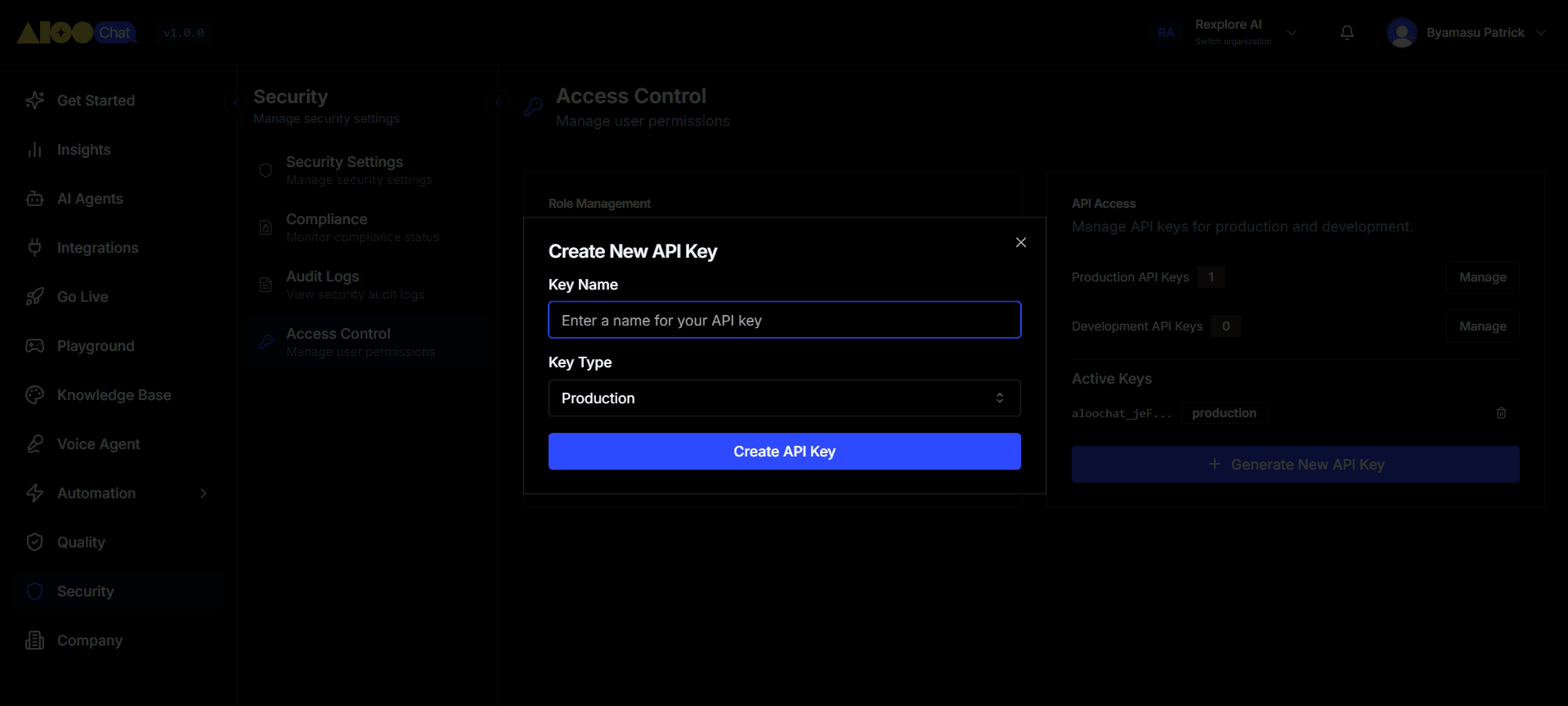
Best Practices for Naming:
- Use descriptive names (e.g., “Production Bot”, “Development Integration”)
- Include the environment or purpose
- Avoid generic names like “Key1” or “Test”
Step 4: Copy Your API Key
After creation, you’ll see your new API key:
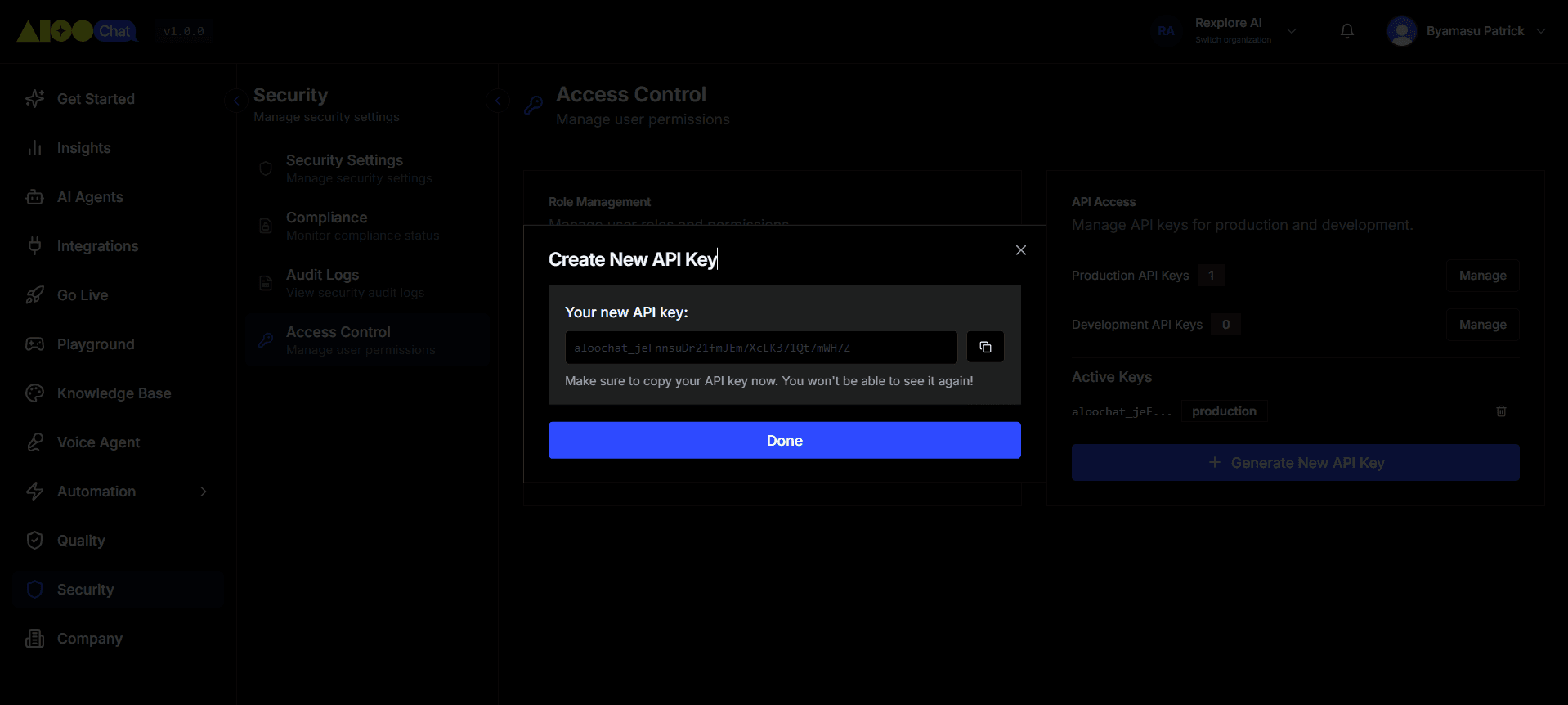
⚠️ Important Security Notes:
- Copy the key immediately - it won’t be shown again
- Store it securely in your password manager or secure vault
- Never share API keys in public repositories or unsecured locations
- Use environment variables in your applications
Step 5: Test Your API Key
Once you have your API key, test it with a simple API call:
curl -X GET "https://api.aloochat.ai/v1/agents" \
  -H "x-api-token: YOUR_API_KEY" \
-H "Content-Type: application/json"API Key Management
Viewing API Keys
All your API keys are listed in the security dashboard with:
- Name: The descriptive name you provided
- Created: When the key was generated
- Last Used: Most recent API call timestamp
- Status: Active, inactive, or expired
Rotating API Keys
For security best practices, regularly rotate your API keys:
- Create a new API key with the same permissions
- Update your applications to use the new key
- Test that everything works correctly
- Revoke the old API key
Revoking API Keys
If a key is compromised or no longer needed:
- Go to the security settings
- Find the API key in the list
- Click the “Revoke” button
- Confirm the action
Note: Revoked keys cannot be restored and will immediately stop working.
Security Best Practices
Storage and Handling
- Environment Variables: Store keys in environment variables, not in code
- Secure Vaults: Use services like AWS Secrets Manager, Azure Key Vault, or HashiCorp Vault
- Access Control: Limit who can view and manage API keys
- Regular Audits: Review API key usage and permissions regularly
Monitoring and Alerts
- Usage Monitoring: Track API calls and unusual patterns
- Rate Limiting: Implement rate limiting in your applications
- Error Monitoring: Set up alerts for authentication failures
- Access Logs: Monitor API key usage in your security dashboard
Development vs Production
- Separate Keys: Use different API keys for development and production
- Limited Permissions: Give development keys minimal required permissions
- Short Expiry: Consider shorter expiry times for development keys
- Team Access: Use team-specific keys for collaborative development
Troubleshooting
Common Issues
401 Unauthorized Error
- Check that your API key is correct and not revoked
- Ensure you’re including the
x-api-tokenheader - Verify the key has permissions for the endpoint you’re calling
403 Forbidden Error
- Your API key lacks permissions for this operation
- Contact your administrator to update key permissions
- Check if you’re accessing the correct environment (dev/prod)
Rate Limiting (429 Error)
- You’ve exceeded the API rate limits
- Implement exponential backoff in your retry logic
- Consider upgrading your plan for higher limits
Getting Help
If you encounter issues with API keys:
- Check the API Documentation for endpoint-specific requirements
- Review your API key permissions in the security dashboard
- Contact support with your API key ID (not the actual key) for assistance
Next Steps
Now that you have your API key set up:
- Explore the API Documentation to see available endpoints
- Check out Agent Integration guides
- Learn about Workflow Automation
- Set up Team Notifications for your integrations